


Blog Post
29 October 2026 • InfiniDesk Team • 3 min read
There are essentially two approaches to make the same Mac handle both your work and personal life, depending on the degree of separation that you want.
Hard Separation: Switch Between macOS User Accounts
Creating two user accounts and switching between them (via logging out and then logging in again) gives the strongest form of data separation. Your work and personal environments can have separate files, settings and applications.
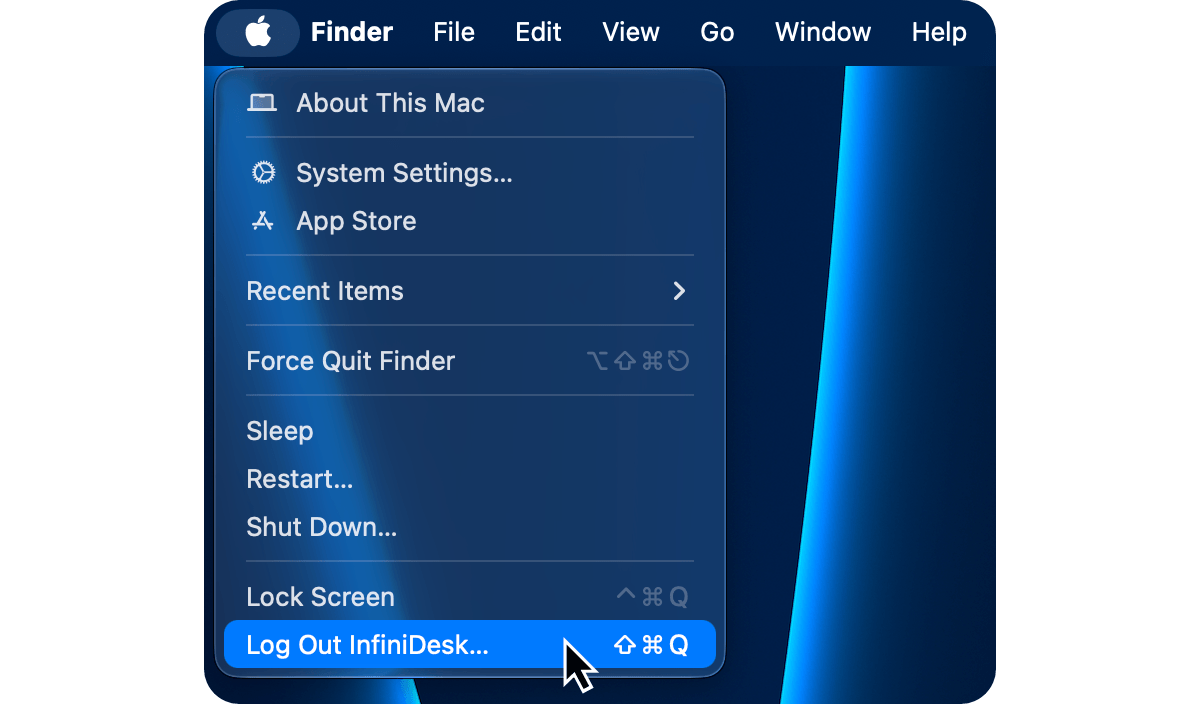
This option makes sense if you are:
- An employee using a Mac for both work and personal purposes
- Working with company-owned files or intellectual property
- Using a company-managed Mac
- Wanting a water-tight boundary between two information environments
If you leave a position, you can easily delete the work account on your personal Mac, or your personal account on a company Mac, without having to untangle your work and personal data.
Another way to achieve a “hard separation” like this is to install a virtual machine like UTM, and then run a separate macOS inside it for work (or personal). However, this can be slower than running macOS natively on the Mac hardware.
Lightweight Context Switching: Stay Logged In and Switch Your Workspaces
If you're a freelancer, contractor, student, small-business owner, or simply use one Mac for both work and personal activities, you may not need a hard separation like switching user accounts.
Instead, using lightweight context switching tools within a single user account (no logging in and out) may be faster and more convenient. The following options are worth considering.
1. Use Focus Modes to Change Your Digital Workspace
Mac lets you work in different “Focus Modes”, which are similar to different digital workspaces.
A focus mode shields you from unwanted interruptions, and lets you set which apps (and people) have notifications silenced.
Additionally, in each focus mode you can set how certain apps behave. For example, you can set the Mail app to show your company inbox only when you are in Work focus mode. This is achieved by setting focus mode "Filters".
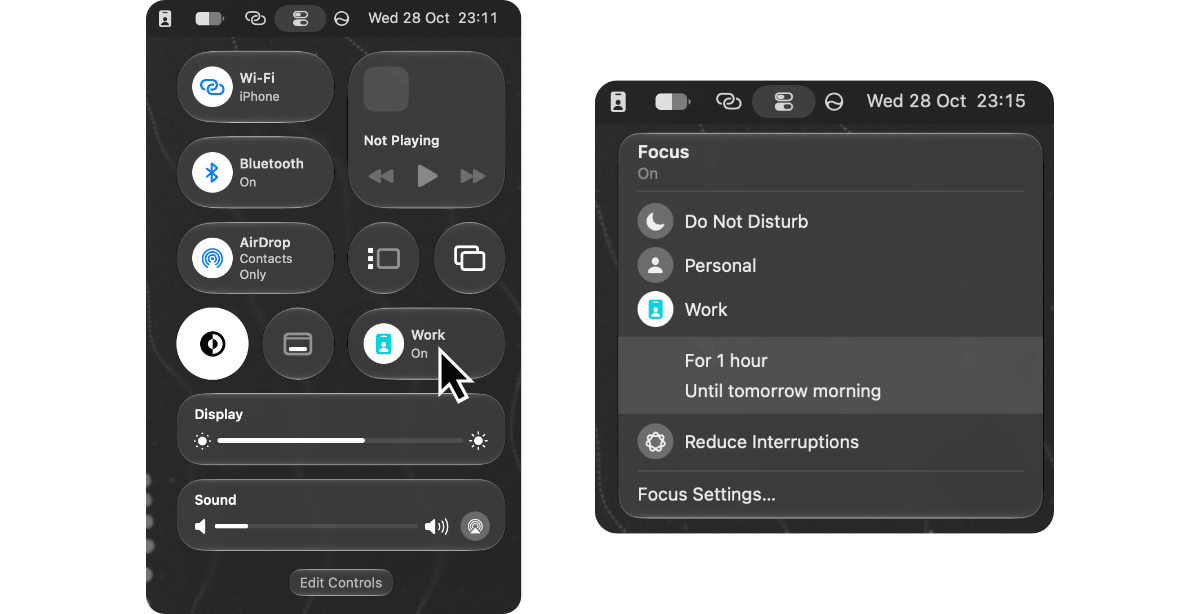
For advanced users, focus modes can be activated depending on the time, or the location of your Mac, or when a specific app is opened.
2. Use Browser Profiles to Separate Your Tabs
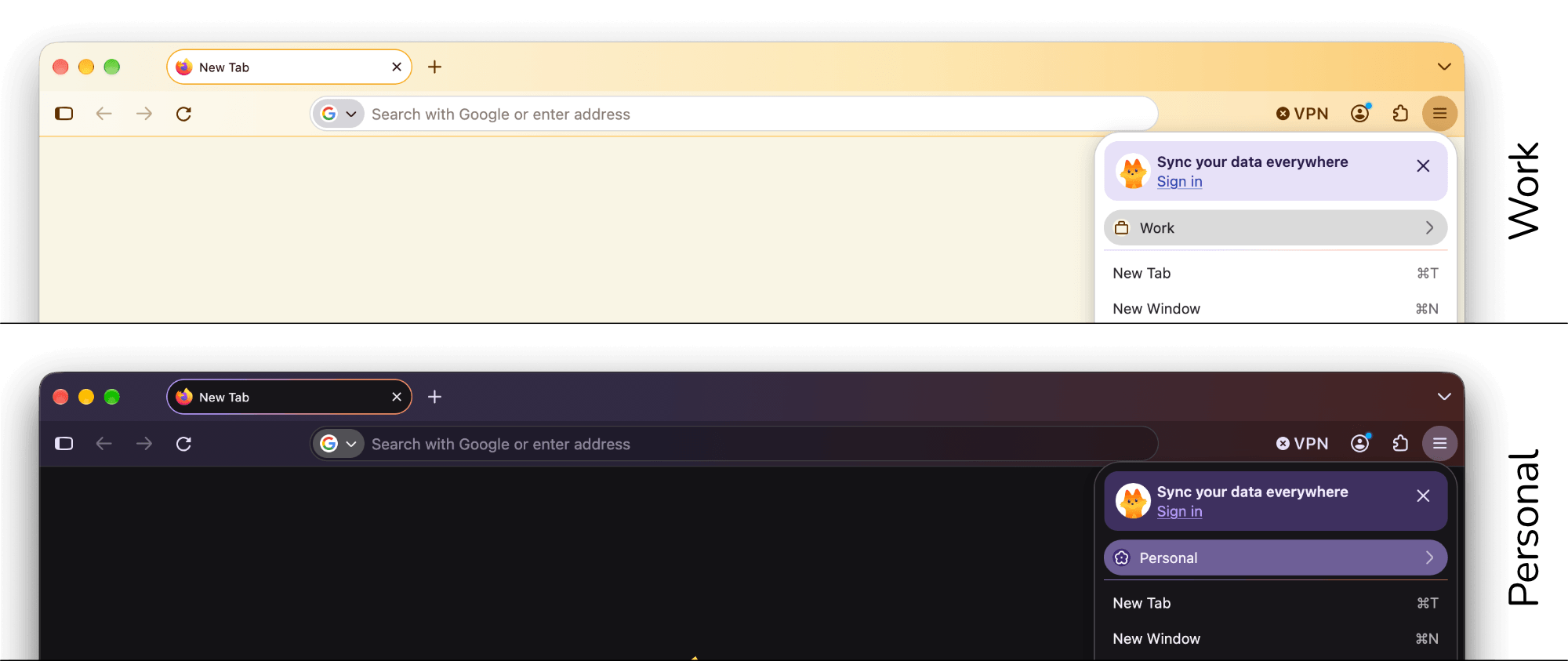
Modern browsers support multiple “profiles” which are completely separate instances of the browser, each with their own tabs, bookmarks, history, account passwords, extensions etc.
In Firefox, for example, you can create and switch between profiles like “Work” and “Personal" by using the ☰ menu at the top right:
3. Use Mission Control to Separate Your App Windows
Mission Control on Mac is a basic solution to separate work and personal windows and applications. It can be opened via ⌃ ↑, via opening the app, or via pressing F3 (typically).
When different Spaces have been added in Mission Control, windows from a specific application can be assigned to always open in a specific Space by right-clicking the application in the Dock and selecting Options > Assign To > This Desktop while in the Space.
For advanced users, a dedicated window manager app (see the macoswm directory) can be used to arrange and keep specific windows in specific Spaces, even after re-booting your Mac.
4. Use InfiniDesk for Separate Work and Personal Desktop Surfaces
The state of the desktop on your Mac can make a real difference to mental focus.
By default, macOS only lets you have only one desktop “surface” per user, with a non-changing layout of desktop files, folders, widgets and wallpaper.
InfiniDesk, however, lets you create and switch between many desktop “surfaces” per user. Different layouts for Work and Personal tasks can be easily created:
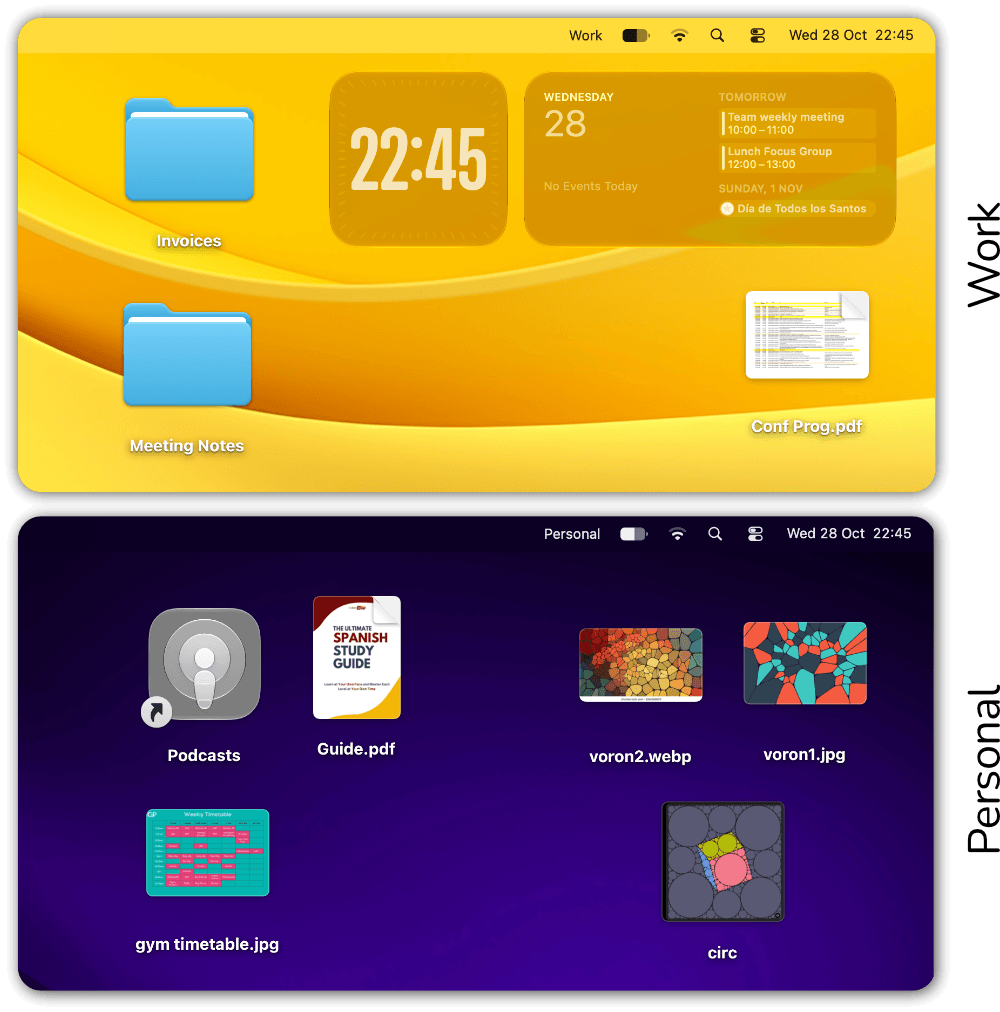
Further, when InfiniDesk is in Follow Spaces Mode, it works together with Mission Control and changes the desktop surface as the Space changes (See the Mission Control vs. InfiniDesk blog post).
Summary: Which Approach is Right For You?
- Choose hard separation (different user accounts / virtual machines) if you handle sensitive corporate data, have strict compliance/IT policies, or otherwise need complete isolation where files, settings, and apps never cross paths.
- Choose lightweight context switching methods like Focus Modes, Browser Profiles, Spaces and InfiniDesk if water-tight data separation is less of a concern, but fast context switching is desirable.
Version 3.22 for macOS ⠿ Released 10 September 2026
Free trial of 100 desktop switches included