


Blog Post
1 September 2026 • InfiniDesk Team • 2 min read

Why You Should Clean Up Your Mac Desktop Before Screen Sharing
When you share your screen during a video call or presentation, you may accidentally expose more of your Mac desktop than you intended. Files, folders, screenshots, downloads, widgets and your (maybe cute) wallpaper can all become visible when you share your entire screen.
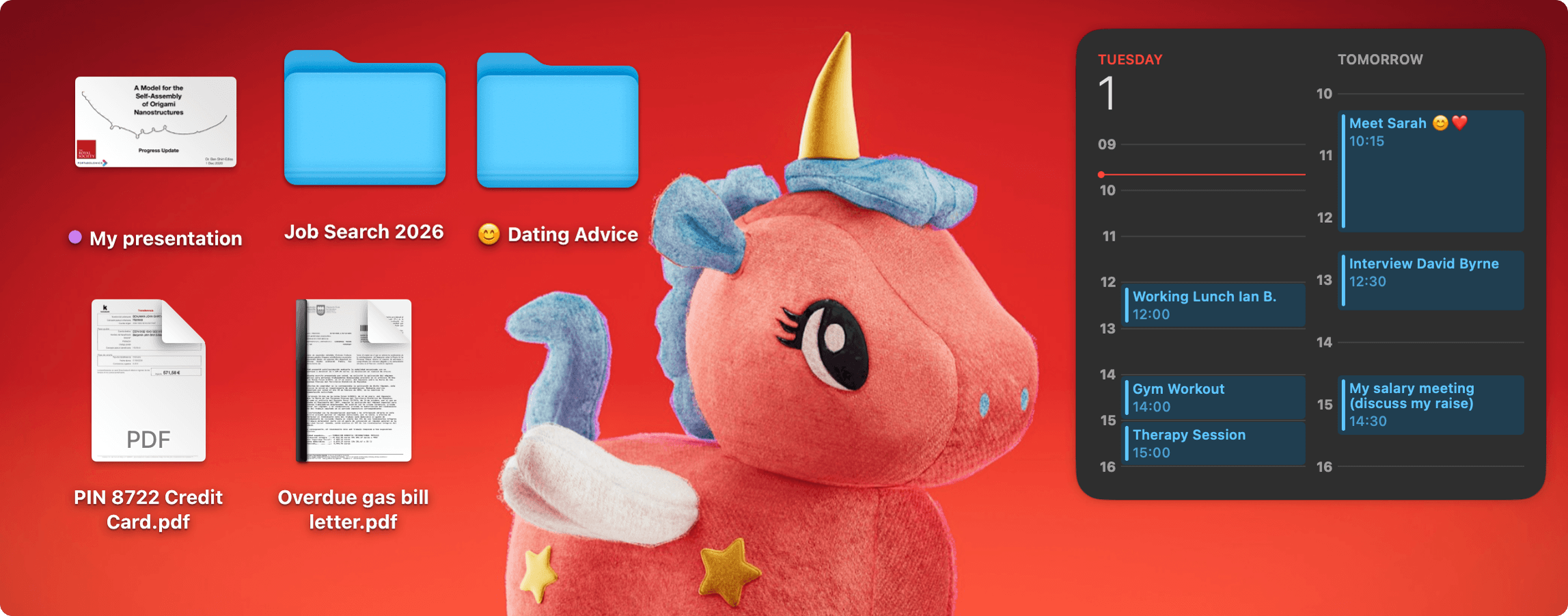
Luckily, there are several ways to avoid exposing your desktop contents.
Four Ways to Hide Your Mac Desktop When Screen Sharing
1. Share Individual Windows
The simplest way is to share single windows, keeping your desktop out of view altogether. However, sometimes this is not practical (or simply does not work) and you need to share your entire screen.
2. Use System Settings
Go to System Settings › Desktop & Dock:
- In the Desktop & Stage Manager section, untick Show Items: On Desktop and untick Show Items: In Stage Manager.
- In the Widgets section, untick Show Widgets: On Desktop and untick Show Widgets: In Stage Manager.
This procedure works, but the settings can take some time to find.
3. Use Terminal
The Mac’s desktop icons can be hidden via the Terminal using two approaches. The legacy terminal approach to hiding Mac desktop icons is:
defaults write com.apple.finder CreateDesktop -bool false && killall Finder
And desktop icons can be shown again with:
defaults write com.apple.finder CreateDesktop -bool true && killall Finder
The downside is that these commands restart the macOS Finder, which can be inconvenient if you have long file copying or moving operations in progress. But they do work, even on older Macs.
The second and more modern approach to turning off desktop icons (if you are running macOS 14 Sonoma or later, and you are not using Stage Manager) is:
defaults write com.apple.WindowManager StandardHideDesktopIcons -bool true
Show the desktop icons again with:
defaults write com.apple.WindowManager StandardHideDesktopIcons -bool false
If you also have desktop widgets displaying, additional terminal commands are required to hide those.
4. Use InfiniDesk
InfiniDesk is a general productivity tool that gives you project-specific desktops on Mac. In addition to its many other uses, it makes it easy to create a clean desktop specifically for screen sharing. InfiniDesk hides desktop files and widgets without restarting the macOS Finder.
Why InfiniDesk Is Useful for Screen Sharing
With InfiniDesk, you can create an empty Desktop View specifically for screen sharing and switch to it before joining your call or starting your presentation. When you're finished, simply switch back to your regular desktop.
For presentations, you can actually go a step further and create a dedicated Desktop View containing only the files you need for the presentation. You could even give it a company-branded wallpaper.
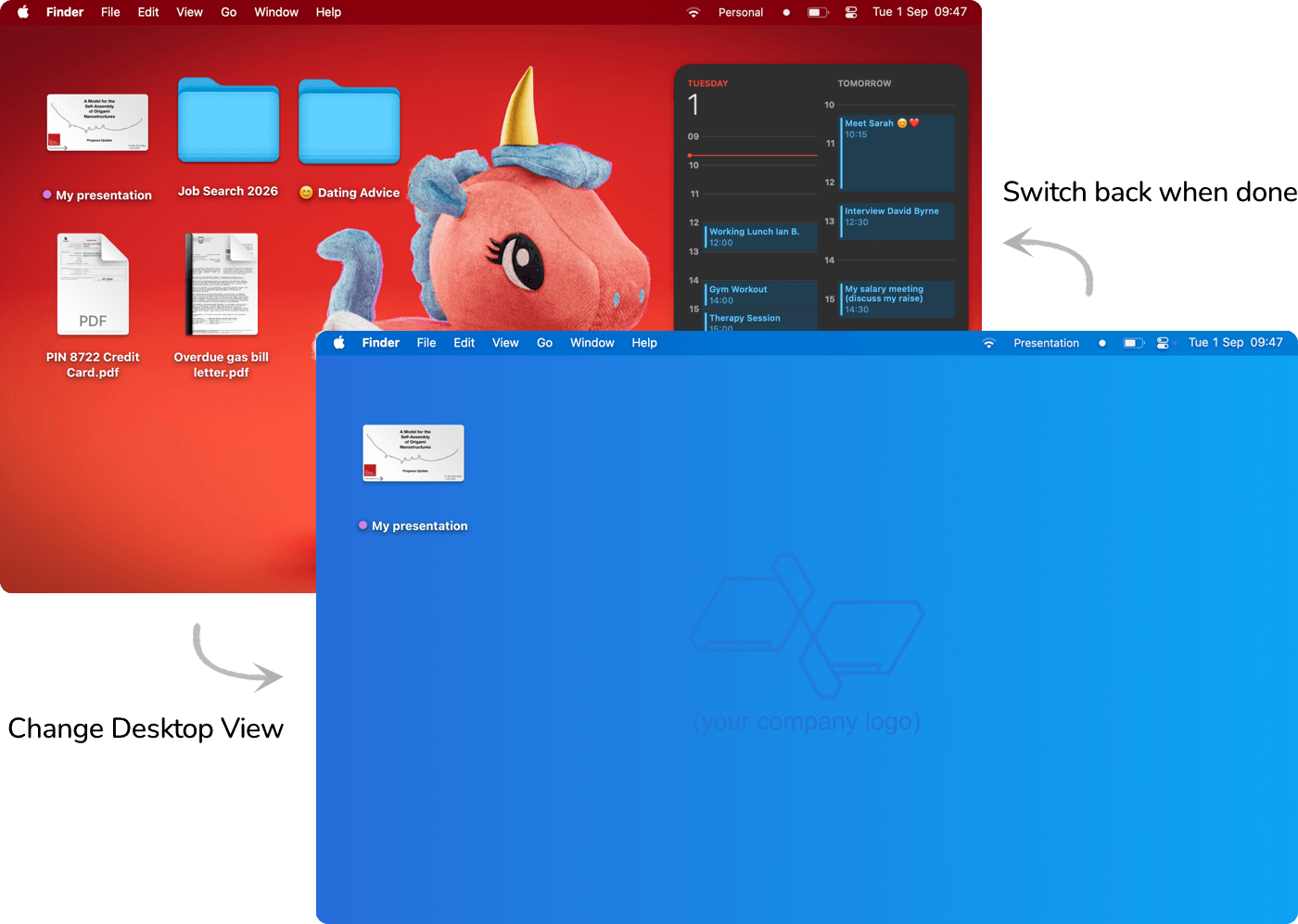
In summary, InfiniDesk lets you create a custom Desktop View (or multiple Desktop Views) specifically for presentations and screen sharing. This is much easier than fiddling in System Settings or running complex terminal commands before a (probably already stressful) presentation.
Version 3.22 for macOS ⠿ Released 10 September 2026
Free trial of 100 desktop switches included